Showing posts with label Review. Show all posts

Saturday, November 30, 2013

Yoink is an awesome drag and drop utility for the Mac


Sometimes dragging and dropping items between multiple windows and full screen apps and folders can be challenging. But dragging and dropping doesn’t have to be a tedious or perplexing task. One of my favorite utilities for the Mac is called Yoink, and it allows you to simplify the process of dragging and dropping on OS X.
Its description in the Mac App Store states that Yoink simplifies drag and drop between windows, apps, spaces and fullscreen apps. As a long time user of the tool, I can vouch for developer Matthias Gansringler’s description. As you’ll see in the video walkthrough that follows, Yoink is one of those apps that you don’t realize you need until you see it in action. Have a look inside for the full walkthrough.
Using Yoink
Once you have Yoink installed and running, all you need to do is initiate a click and drag motion on any app in your Finder. After doing so, you’ll notice the Yoink pop-up folder appear on top of all other windows. This folder acts a temporary place holder for any files you drag there. You can then navigate to your desired designation, and drag the apps out of the temporary holding spot into their final resting place.
It’s one of those things that’s a bit hard to explain in writing, but the lightbulb goes off when you see it in action. For that reason, I urge you to watch the video walkthrough above to see Yoink in action.
Yoink’s Preferences
Yoink features a variety of setup options found in its preferences. There, you can choose the desired location of the temporary holding folder pop-up window. By default, the window resides on the left hand side of the screen, but you can position it elsewhere, or have it float near your dragging location. You can also choose a set of ignored apps, and create a keyboard shortcut to invoke the Yoink pop-up folder.
Yoink’s preferences allow you to reposition the pop-up folder
Yoink is a great utility for my workflow
Yoink is instrumental to me when working with full screen apps like Final Cut Pro. Because of my 11" MacBook Air’s small screen, I always find myself running Final Cut Pro in full screen mode. It’s difficult to drag and drop files into my project’s timeline without a tool like Yoink, so I’m extremely grateful for its existence.
If you always find yourself in an awkward situation while moving your files from one location to another, then give Yoink a try. It’s a great app, and its developer provides excellent support and keeps it constantly updated. Again, you can find Yoink on the Mac App Store for $3.99. Let me know what you think in the comment section below.

Thursday, November 28, 2013

Pebble Smartwatch: some thoughts on why the smart watch is here to stay


Believe it or not, but Monday marked my first hands-on experience with the Pebble Smartwatch. I’ve striven to avoid the product all of these months, because I figured that Apple would eventually get around to making a “real” smart watch.
Apple still might do that, but its time table hasn’t aligned with the expectations of the tech blogging industry, mine included. Apple never said that it was working on a wearable, so it’s really our fault for creating such expectations.
In the meantime, the Pebble Smartwatch and its SDK have had plenty of time to marinate and mature. The latest update to Pebble’s software brings with it systemwide notifications, and there’s no hacking or jailbreaking needed to do that. In the eyes of many, that’s enough to make the Pebble Smartwatch worthy of serious consideration, and I tend to agree.

Unboxing the Pebble Smartwatch

Unboxing the Pebble was a simple affair. The device’s brick and mortar retail package comes in a tiny box wrapped in cheap shrink wrap. Inside of the box you’ll find the Pebble Smartwatch and a USB cable attachment for charging the device. You’ll also find a few pieces of documentation used for setting things up. Here’s a video showcasing the unboxing:

Looks, size, and fit

The Pebble comes in a variety of colors: grey, jet black, cherry red, orange, and arctic white. I have the jet black model, which is probably the best bet if you want to stay on the conservative side. From a pure looks standpoint, I do think the arctic white is the best looking color. All of the colors can be ordered from Pebble’s website, while only jet black and cherry red seem to be available from retail stores, including Amazon.com.
The Pebble is a bit smaller than I imagined it to be in person. It’s probably no larger than a modern men’s watch you’d find at a retailer like Macy’s. The Pebble isn’t a gaudy wrist accessory, but it’s big enough to be noticed and identified by passersby.

The wrist strap that comes with the Pebble is large and consists of rubber. It’s definitely the weak link when it comes to overall looks. Due to its cheap rubber makeup, the wrist strap can be irritating to the skin. It’s not uncomfortable enough to make me want to take it off, but it doesn’t “disappear” like a good wrist strap should. Fortunately, there’s no shortage of third party wrist straps available, and I plan on acquiring one as soon as I can.

Setting things up

Setting up the Pebble Smartwatch for the first time was a nightmare, and judging from Pebble’s support forums, I’m not alone in my sentiments. I actually plan on publishing a setup tutorial at a later date, just because the setup was so clunky and cumbersome.

For whatever reason, setting up the Pebble Smartwatch properly involved downloading older firmware from some random link on its support forums, and installing the latest firmware on top of the old firmware. If you don’t go about this procedure in the right order, you’ll find yourself stuck in a recovery loop. I spent about an hour researching and trial testing my Pebble Smartwatch before I could even begin using it. It’s definitely not a plug and play procedure, and I could see a few people returning their Pebble’s due to the frustration that results from the poor setup experience

Using my Pebble

Once you finally get the Pebble setup on the latest firmware, using the device is an enjoyable experience. Actually, I’m shocked at how much I like the Pebble thus far. I’ve always doubted the viability of the Smartwatch or other “wearables,” but, after using the Pebble for a day, I’m a believer.
The team behind the Pebble did a great job of creating a functional and practical product. The Pebble’s e-ink display — similar to the one’s used in Amazon’s Kindle and other e-readers — makes it so that you can read the watch face in direct sunlight, and also promotes long battery life. Though I haven’t put it through its paces entirely, the Pebble reportedly last a week on a single 3 hour charge.
Functionality wise, there isn’t a whole lot you can do with the Pebble. You can’t initiate calls or texts messages via the device. It has no speakers, microphones, cameras, or any other input functionality, sans four physical buttons. The Pebble is a device used to spit out information from your smart phone, and nothing more. But that’s okay, because that’s an incredibly useful feature in and of itself.
The ability to receive all of your text message notifications, tweet alerts, incoming phone call notifications, and virtually any other type of alert is a massive convenience. This allows you to silence the alerts and squash the vibrations coming from your smart phone, and instead forward them all to your wrist.

I’ve setup my Pebble to vibrate on incoming phone calls, so when a phone call does come in, I can quickly view the incoming caller, and answer the call with a simple button press. Or, if it’s someone calling that I don’t need to speak to at the moment, I can use the Pebble to quickly screen the call without removing my phone from my pocket. Think about how many times you take your phone out of your pocket each day to view a notification that requires no real action at that moment. Now think about the fact that you’ve just eliminated the need to do that so many times throughout your day.
The Pebble allows you to focus on driving, or continue a conversation without being rude. The Pebble makes it so that I don’t have to go digging out my smart phone every few minutes just to see an alert or an incoming call. All of those alerts now reside on a place that feels incredible natural — my wrist. It’s a liberating feeling that you may not come to appreciate until you try it for yourself.
Of course, the Pebble Smartwatch does more that act as a billboard for your phone’s incoming notifications. It can also control your music, tell the weather, act as an alarm clock, and yes, it can tell time, too. You’ll find quite a few apps on the App Store that allow you to get more out of your Pebble, and the list keeps growing each day. I’ll be sure to follow up with some reviews of my favorite Pebble apps in a future post.

The bottom line

I’m quite late to the party when it comes to the Pebble, and there are tons of reviews out there that go over every single nook and cranny concerning the device. With that in mind, I didn’t want this to be a regurgitation of what you’ve already read. I wanted to bring you this write up in order to emphasize how much I now believe in wearable technology.
The Pebble Smartwatch is by no means a perfect wearable. It has a terrible setup, an uncomfortable wrist strap, and it’s quite expensive at $149. Nevertheless, it has made me an unequivocal believer in this market. It vastly reduces the number of times that I have to look at my phone, and it silences its notifications. Because of that, it’s a product that I’ll be wearing on my wrist until the inevitable happens and something better comes along.
I’ll be sure to come back and provide you with a proper video review once I’ve spent enough time with the device to truly put it through its paces. In the meantime, sound off in the comments below and share your experiences with the Pebble Smartwatch.

Wednesday, October 30, 2013

Apple Dash HD review: retro platform gaming is a hit on iOS


If you are over the age of 30, you are probably a fan of classic arcade games like Donkey Kong and Pac-Man. Those are the titles that turned us into the mindless video game addicts that we are today.
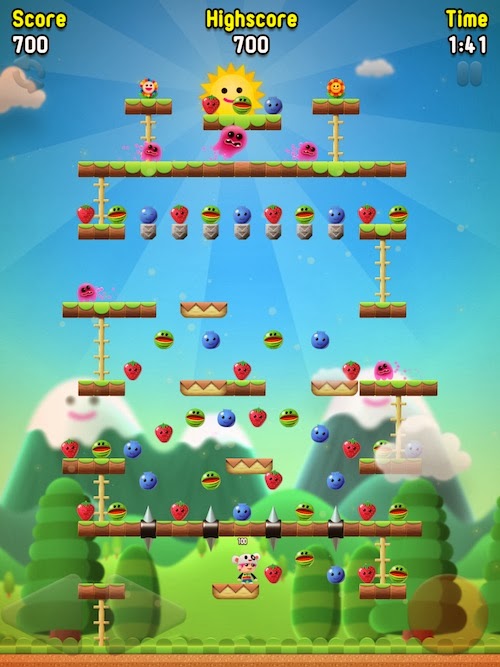
Apple Dash HD doesn’t look like the pixelated platformers of decades gone by, but it does play like one. Timing is everything and power ups will give you the advantage you need to get past ghostly enemies…

Design

At first glance, this game doesn’t really look much different than your average App Store release. The graphics are colorful and cute. It could fit into the same design folder as Candy Crush Saga.
When you pay closer attention to the details, you’ll discover that little Dash has a number of different expressions, depending on what is going on. If he jumps, he will close his eyes tightly and raise his arms in the air. If he starts to fall off of a platform, he will get a surprised look on his face and will fling his arms around in circles, trying to catch his balance.
Every piece of fruit bobs to its own beat and the single-toothed ghosts float around, making your life miserable. Colorful sunflowers offer special bonuses to help you run fast or save the bees from their captors.
Each level increases in difficulty so that by the time you are a dozen levels into the game, you are busy avoiding spikes, trying not to fall off of breakable platforms, and doing whatever you can to rescue all of the fruit before you run out of time.
When you complete certain goals, you will unlock new hats for Dash to wear. These hats will offer bonuses like adding 15 seconds to the clock and extending the length of invulnerability.

Gameplay

The thing that makes this game so interesting is that, while it may look like a simple puzzle or physics-based game, it is actually a well-designed platform game that requires expert skills in timing and controls. Players must collect all of the fruit in less than two minutes. That may seem like a lot of time, but when falling off of a platform will set you back 30 seconds, you’ll soon find out that you don’t have the luxury of waiting for a ghost to go past you.
Players use a virtual left and right arrow on the left side of the screen and a virtual jump button on the right side of the screen. The controls work better than most virtual buttons in iOS games. Lag time or a joystick that is too loose for precision timing won’t irritate you. The only reason you will be irritated is by your own lack of abilities.
To complete a level, climb the ladder by tapping the jump button. Then, collect all of the fruit from bottom to top. You must collect every piece of fruit to pass the level. If you don’t grab all of the fruits before time runs out, you will have to start over.
There are colorful sunflowers that offer bonus power ups that will help you win. For example, one sunflower gives you super speed so you can get the fruit faster. Another sunflower makes you invincible so you can touch ghosts, making them explode and reveal the friendly bee that was trapped underneath.
If you do run into a ghost when you are not invincible, it will cover you with goo that will slow you down for a short period of time. While it doesn’t affect your ability to control Dash, every second counts in this game, and the less goo you get, the faster you will collect all of the fruit.
Once you’ve gathered every piece of fruit on the board, a bombardment of apples, oranges, and strawberries will fall from the sky. This is a bonus round where your goal is to try to collect as many pieces of fruit as possible in just a few seconds. Five letters will also fall from the sky during the bonus round. These letters spell out “bonus” and will give you extra points if you manage to get all five of them.
You will be awarded stars for your effort at the end of each level. Stars are earned for completing the level fast, collecting as many pieces of fruit during the bonus round as possible, and grabbing all of the letters. It is very difficult to get three stars, especially when two of them are based on your efforts during the few seconds of the bonus round. If you want to prove that you are a master at arcade style platform games, you’ll be replaying these levels a lot.

The Good

This is a great retro style of game, without the look. Many times, when I review a pixelated game, I hear complaints from readers who don’t like the old-school look of retro themes. This one has a polished look with a classic arcade feel.

The Bad

At the end of each level, your points are tallied. It is excruciatingly slow and there is no way to skip it. I’d really like the ability to skip past the scoreboard. Sometimes, you just want to roll quickly into the next level without losing momentum.

Value

Apple Dash is $2.99. Normally, I would consider three bucks to be on the high end, but this game is worth the price. There are 100 levels across four worlds and each one has a very high replay value since it is so difficult to earn three stars. If you still think that the price tag is too high, or you don’t own an iPad, you can download the iPhone-only version for only $0.99.

Conclusion

If you are a fan of classic platform games like Donkey Kong, you will really enjoy this updated version of a traditional genre. Instead of going back in time with pixelated graphics, this game has a polished look for today’s technology, combined with old-school gameplay. This game is available as a universal app for the iPhone, iPad, and iPod touch. Download it in the App Store today. As mentioned above, there is also an iPhone-only version available.

Related Apps

Scribblenauts Remix is a traditional platformer with a colorful modern look. Limbo is a platformer with cerebral, dark imagery.